
Guide
Install the firmware
Current version: 0.10.6 (build 0.10.6-m10.4, which the splash screen shows as “v0.10.6-m10.4”; the unit reports itself as FM-1_58001006). The package and its checksum are below.
[Draft: this page is meant to stay unlisted until the release is ready.]
Four ways to install
1. From this website
The easiest: your browser installs it over USB. Chrome or Edge on a computer.
Install from this page2. Download and install yourself
Download the latest package and put it on the FM-1 with an FM-1 installer you already use, or the project's command-line tool.
Download the package3. The FM-1 Firmware Hub
Install from the community firmware catalogue, on the web or its iPhone app. KickSide shows up there once it is listed.
Open thefirmwarehub.com4. From GitHub (technical)
Build or download the release yourself from the source repository.
Release v0.10.6 Source codeWhichever way you choose, read steps 1 and 2 first.
1. Check your unit
- Stock V15 is the tested starting point. If your FM-1 reports another version (V16, say), the installer warns you and lets you continue if you choose to. That is untested and entirely at your own risk.
- Flash chip: the installer accepts 0x856014 and 0xB36014 and refuses any other before it erases anything. The 0xB36014 chip has only run in an emulator so far.
- Units already on V16: there is no documented way in yet. [open question]
2. Back up your unit
Make a full flash backup of your own unit first. A backup from another unit will not restore yours. Use the community tools (M-Flasher or MvaveFM1Unbricker) and follow their guides: [links to be added]. Keep a copy on another disk.
3. Install
You will need a computer with a direct USB connection (no hub), on mains power, with sleep disabled and other MIDI apps closed. The installation takes one to two minutes and must not be interrupted. It writes the firmware's own area and the update staging area, and nothing else: your songs, saved SYNTH presets and settings are not touched. You can install from this page (see Install from this page; Chrome or Edge) or with the project's command-line tool.
Download the package
Loading package details…
Download the firmware package (.fwsc)
Check that the SHA-256 of what you downloaded matches the one above. The package is installed with the installer below or the project's command-line tool, not by copying it to the FM-1.
Install from this page
Not available hereThis browser cannot use MIDI devices, or the page is not opened from https://. Use Chrome or Edge on a computer.
“Find my FM-1” checks what is connected. Stock V15 and KickSide are the tested starting points; any other FM-1 version gets a warning and an extra tick-box before you can continue. Nothing is written until you press Install. The browser will ask once for permission to use MIDI devices with SysEx: allow it. If the install is cut off, replug the USB cable and press the buttons again: the FM-1 stays in update mode until the write is finished. The update code is fm1-base's browser updater (MPL-2.0), used unchanged.
4. First start
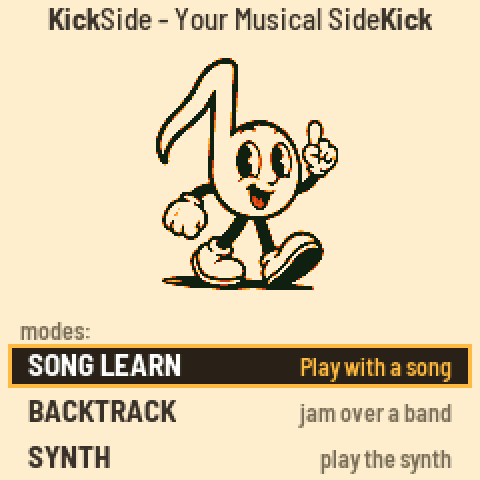
You should see the splash screen with the version at the lower right, then the mode screen with SONG LEARN, BACKTRACK and SYNTH. A new FM-1 already has 15 songs and 42 backtracks built in. Pop-ups is ON again after every firmware update; change it in Settings if you do not want it.

Updating from an earlier build
Install the new package the same way. The song store, your saved presets (U01–U30) and the settings stay. A song of yours with the same name as a built-in song is listed instead of the built-in one until you delete it.
Starting from scratch (factory reset)
A factory reset erases the song store, both preset areas (U01–U30) and puts the settings back to their defaults. The firmware and the panel calibration stay. It is a command of the project's tool, it is refused while the unit is in SYNTH or BACKTRACK, and afterwards the unit shows “FACTORY RESET DONE / SWITCH OFF AND ON” and reads nothing until you do. The built-in songs are still there.
If it does not start
| What happens | What it does |
|---|---|
| A crash or hang twice while starting | Safe mode: no sound and no app, but USB stays on so you can install again. PLAY tries the app again, REC goes to the chip's own update mode. |
| REC held while switching on | “UPDATE MODE (REC)”: the chip's own ROM update mode, which works even when the app is broken. |
| Four failed starts in a row | The chip's own update mode, by itself. |
| GLO and HOME held while switching on | “WIPE SONG STORE?” before anything reads the store. PLAY held for two seconds erases every song; any other button keeps them. |
| An update cut off by a lost cable or power | The update loader runs again at the next power-on and the install resumes. |
| OCT− and OCT+ held while switching on | Not a rescue: the panel set-up (key and knob calibration). |
You can always install a known-good version again from safe mode.
Back to stock
Install the official V15 package through the normal update path. We do not host M-VAVE's files; links will be provided. The full backup of your own unit is the last resort.